
The green iPhone camera dot in the top-right corner of your screen means an app is actively using your camera. The orange dot means an app is using your microphone. Apple introduced both indicators in iOS 14 as a privacy feature so you can see, at a glance, when your hardware is being accessed. If you see one without a clear reason, that is worth investigating.
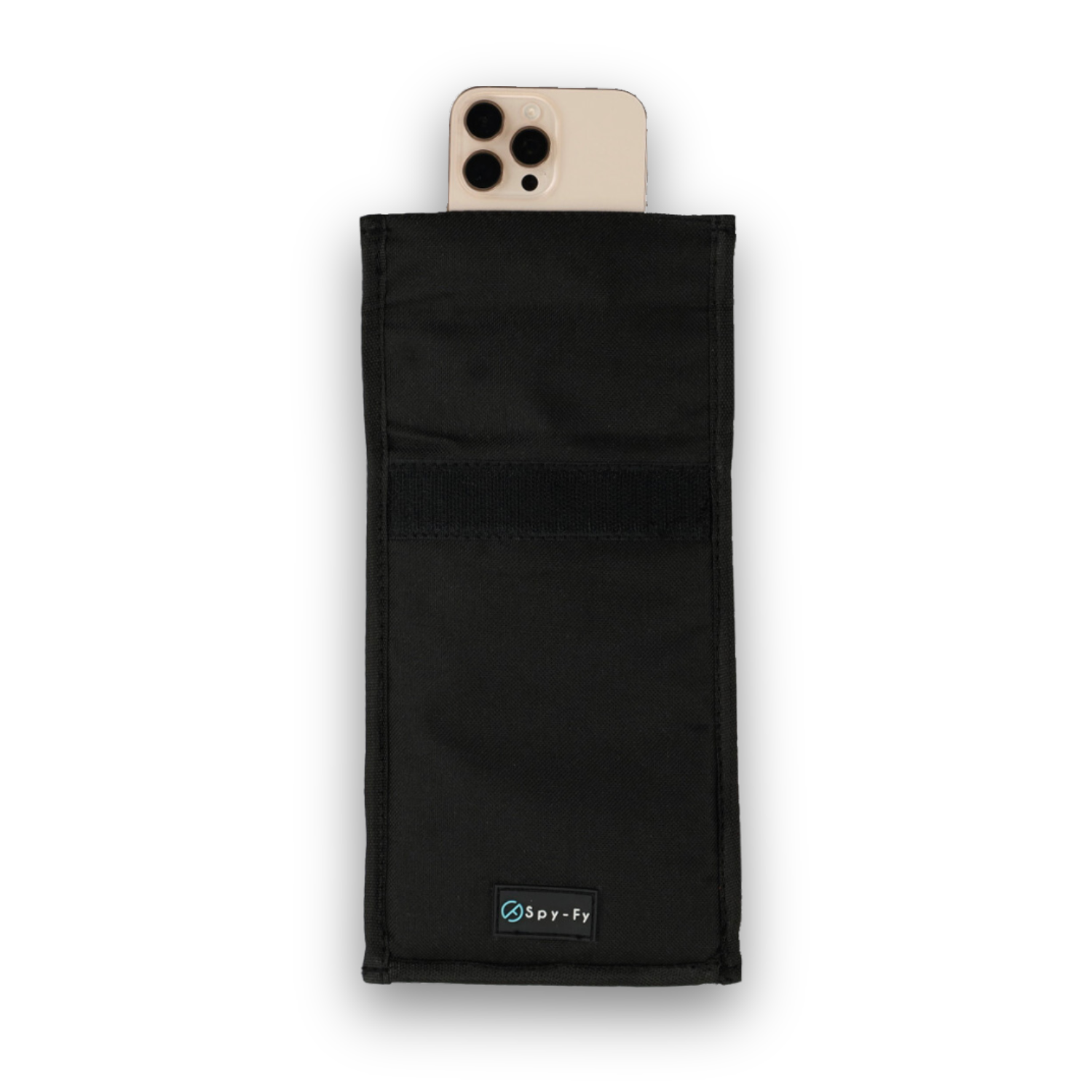
This guide is written for privacy-conscious professionals: executives traveling internationally, journalists protecting sources, healthcare workers handling patient data, lawyers concerned about attorney-client privilege, and government employees who treat their iPhone as part of a serious security perimeter. We cover what each dot means, how to check which app is responsible, what to do when the indicator appears unexpectedly, and the one limitation of the system that most articles ignore. For hardware-level protection that does not depend on software at all, the Spy-Fy privacy case collection sits behind every recommendation in this article.
What the green dot on iPhone camera means
A solid green dot in the top-right corner of your iPhone screen indicates that the camera is currently in use. It also appears when both the camera and microphone are active together, such as during a FaceTime or Zoom call. The indicator was added in iOS 14 and has been part of every iOS version since.
You will see the green dot during normal activity: video calls, the Camera app, QR scanning in third-party apps, Instagram Stories, Snapchat, and banking apps using ID verification. In all of these scenarios, the dot is doing its job, confirming that the camera is on because you asked it to be.
The concern arises when the green dot appears and you cannot identify what triggered it. That is the case worth investigating.
What the orange dot iPhone meaning is
A solid orange dot (or an orange square if you have enabled Differentiate Without Color in Accessibility settings) means an app is using your microphone but not your camera. Common triggers include voice notes, Siri activation, voice memos, dictation, phone calls, and background audio recording inside apps like WhatsApp or Discord.
Like the green dot, the orange dot is benign when it matches your activity. If you just pressed the microphone icon to send a voice note, the orange dot is expected. If it appears while your phone is sitting face-down on a desk during a confidential meeting, that warrants a closer look.
How to check which app is using your iPhone camera
The camera privacy dot iPhone system also tells you, with one extra step, exactly which app triggered it. Here is the verification flow:
- When you see the green or orange dot, swipe down from the top-right corner of your screen to open Control Center.
- At the top of Control Center, you will see the name of the app that most recently accessed your camera or microphone, along with the type of access (camera, microphone, or both).
- If the app name is unfamiliar or the timing makes no sense, that is your signal to audit.
To audit permissions, go to Settings > Privacy & Security > Camera (or Microphone). You will see every app you have ever granted access to, with a toggle next to each. Revoke access for anything you do not actively use. The same principle applies to Location Services, Contacts, and Photos. For a fuller walkthrough of iOS privacy controls, the guide to the best privacy apps and settings for iPhone covers the audit in detail.
When the green dot iPhone camera appears without an obvious cause
If the green dot lights up and you cannot find a matching app in Control Center, work through these possibilities in order:
- Background app refresh. A messaging or social app may have briefly accessed the camera for a feature like attachment preview. Open Control Center immediately to catch the app name before it disappears.
- A widget or shortcut. Some Lock Screen widgets and Shortcuts automations can trigger camera access. Review Settings > Shortcuts > Automation.
- A recently installed app. If the dot started appearing after you installed something new, that is the first place to look. Delete and observe.
- iOS bugs. Occasionally a glitch causes the indicator to flash briefly with no real access. Restart the phone and update to the latest iOS version.
- Spyware or stalkerware. Rare for the average user, real for high-value targets. We address this below.
For symptoms beyond the indicator dot, such as battery drain, overheating, or unfamiliar profiles installed on your device, the diagnostic walkthrough in can someone hack your iPhone camera covers the process step by step.
The limitation almost no one talks about
Apple's official documentation states that the indicators cannot be turned off and apps cannot hide them. For ordinary applications operating within the App Store sandbox, that is true. The dots are enforced at the operating system level and there is no public API to suppress them.
What is less widely discussed is that commercial-grade spyware deployed via zero-click exploits has, in cases documented by Citizen Lab and Amnesty International, bypassed these protections on compromised devices. Tools such as Pegasus (NSO Group) and Predator (Intellexa) have been shown to gain kernel-level access that the indicator system was not designed to defend against. This is not a concern for most users. It is a concern for journalists, dissidents, executives at sensitive companies, lawyers handling high-profile matters, and government employees.
The point is not that the iPhone camera dot is unreliable. For the vast majority of users, it is exactly what Apple says it is: a trustworthy software signal. The point is that a software indicator, by definition, depends on the operating system being uncompromised. The only way to be certain the camera is not capturing video is to physically block the lens.
Physical camera covers: the ground truth
This is where a privacy case earns its place in a threat model that takes worst-case scenarios seriously. A piece of opaque material over the lens cannot be bypassed by malware, OS exploits, or rogue apps. There is no software trick that defeats physics. Mark Zuckerberg famously tapes his webcam for this exact reason, and former FBI Director James Comey has publicly recommended the same practice.
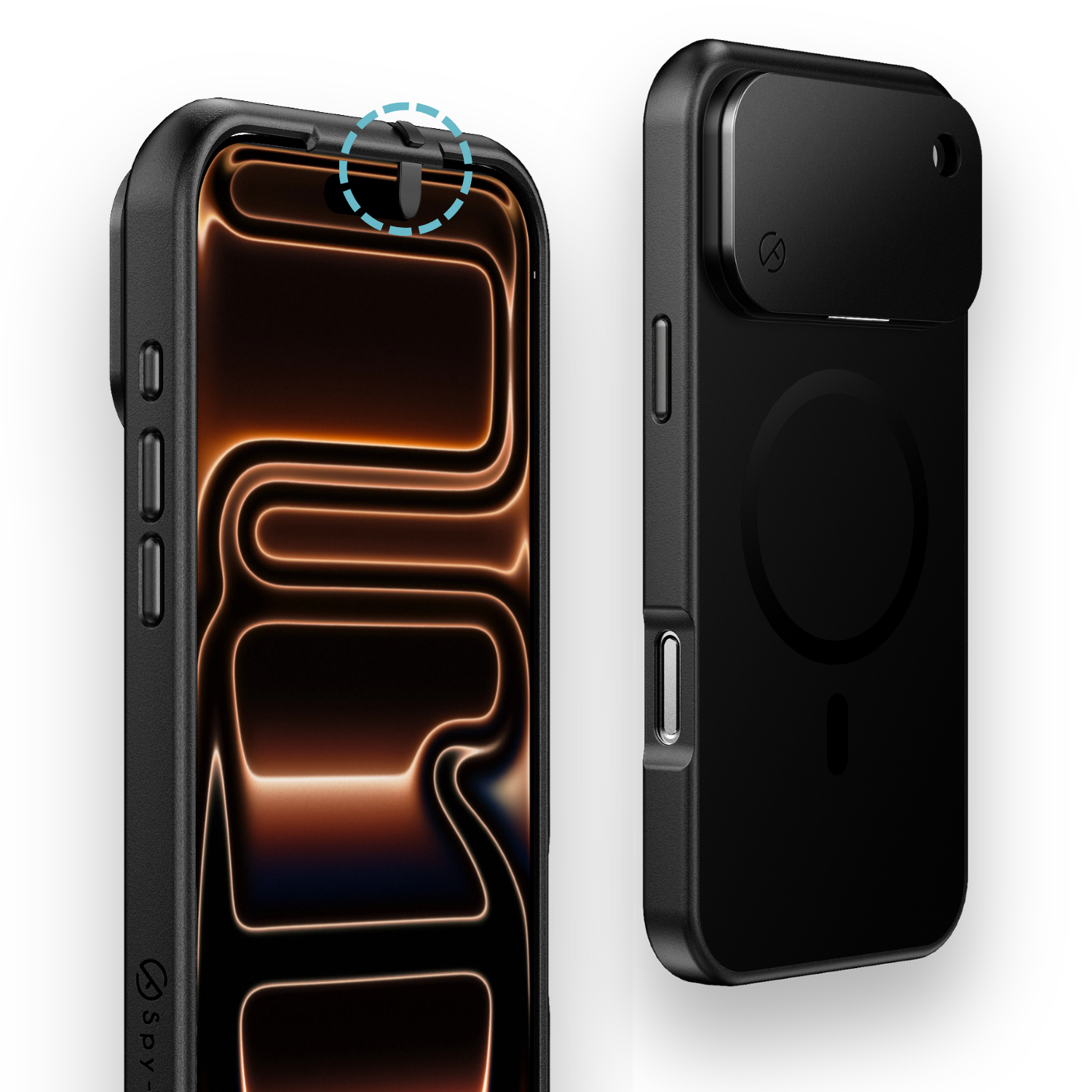
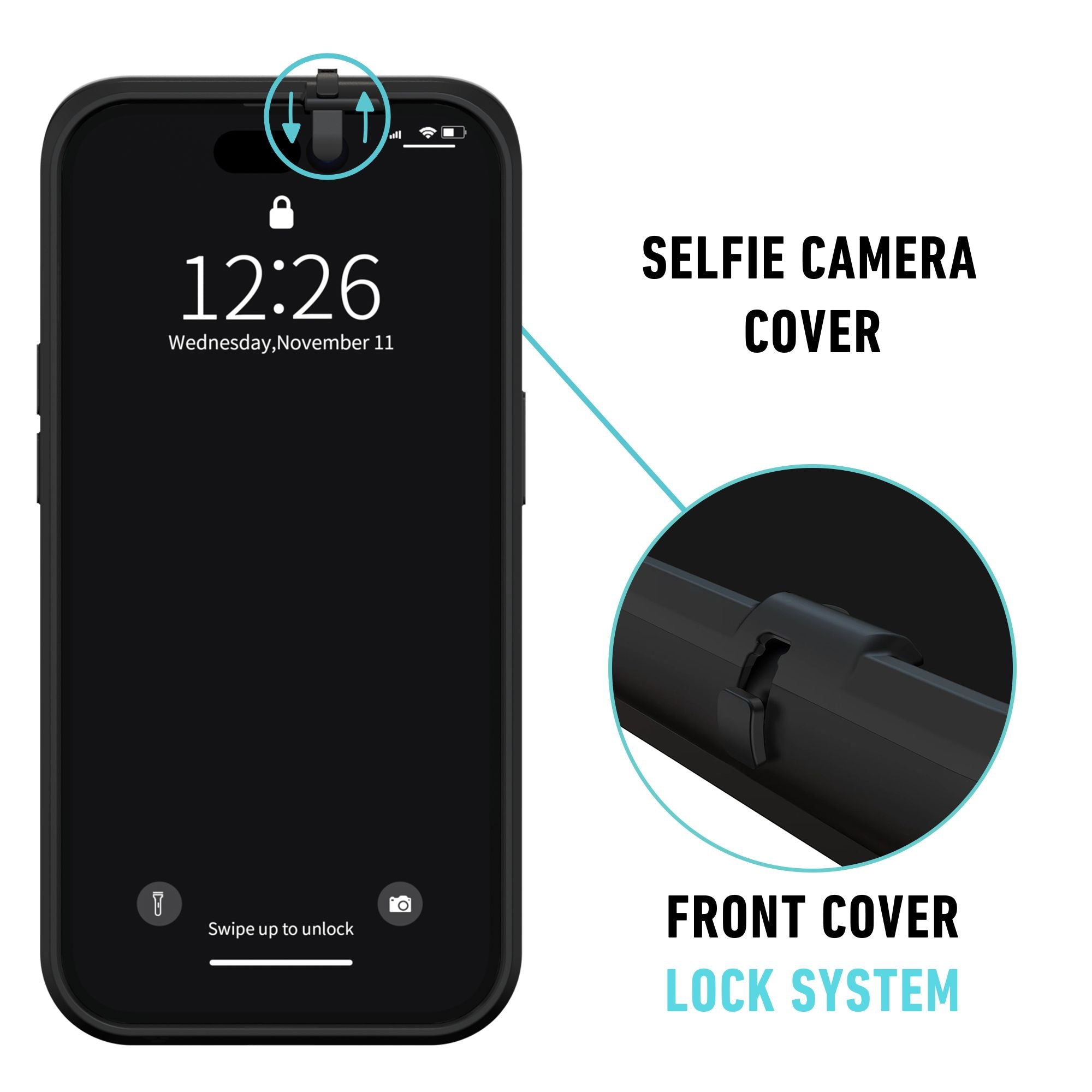
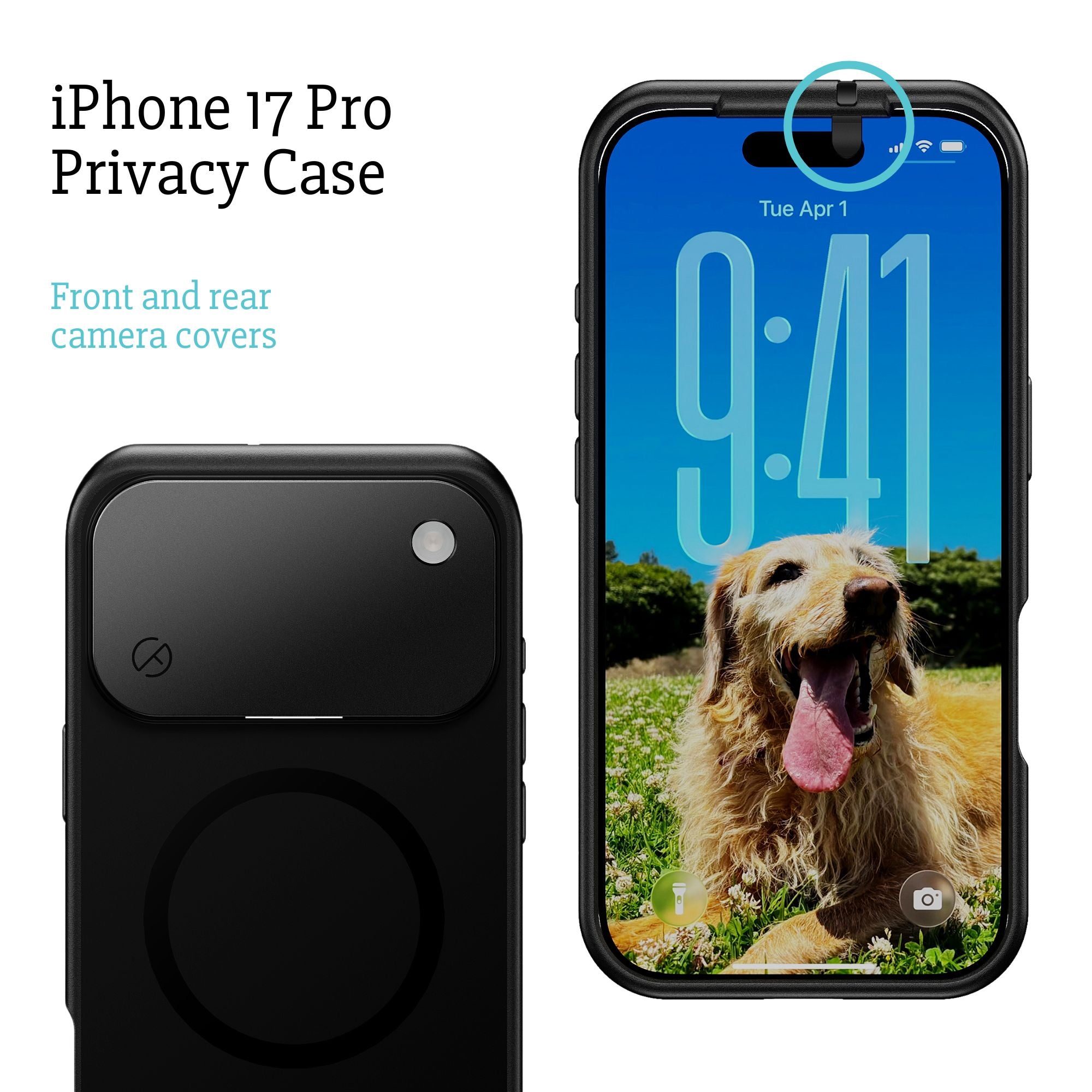
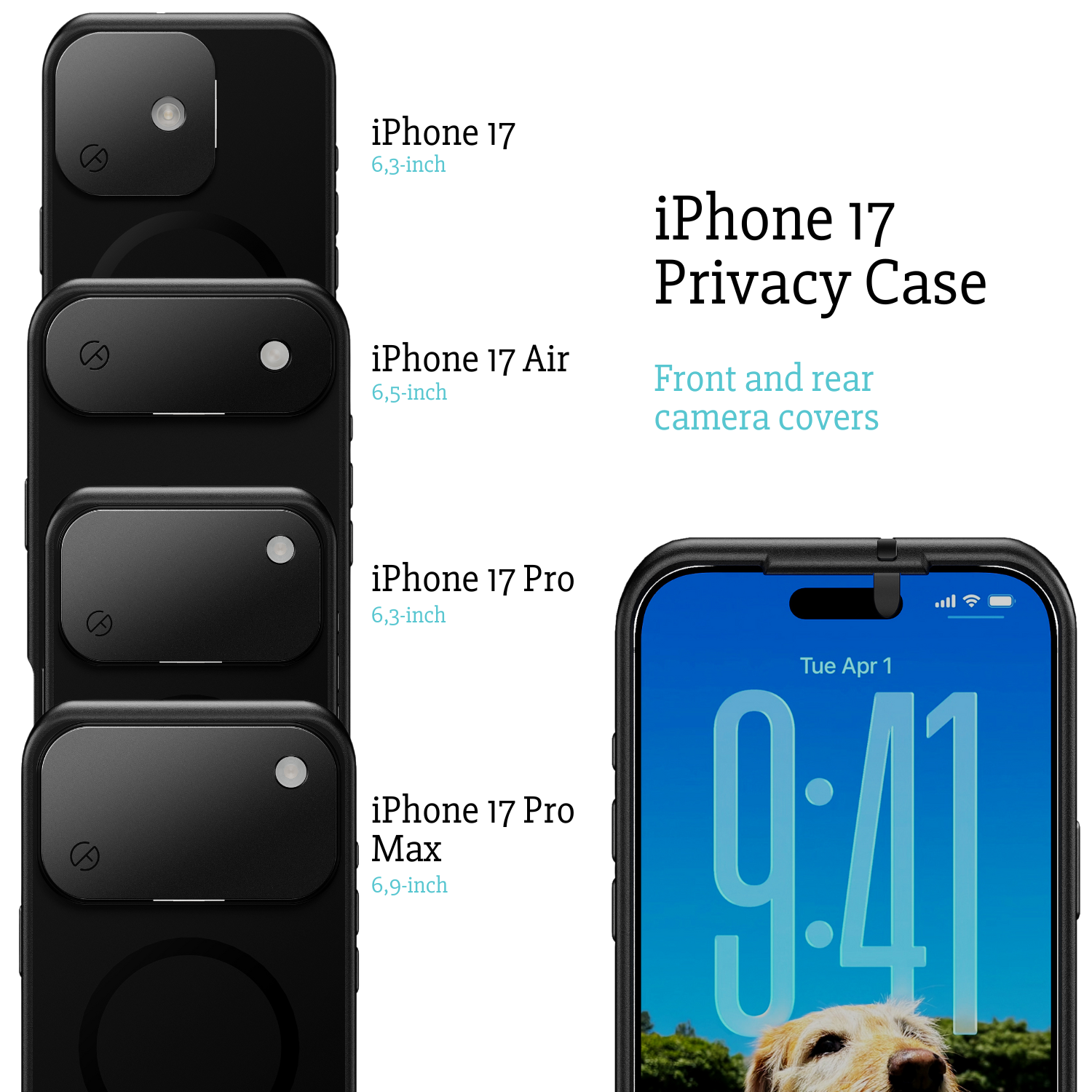
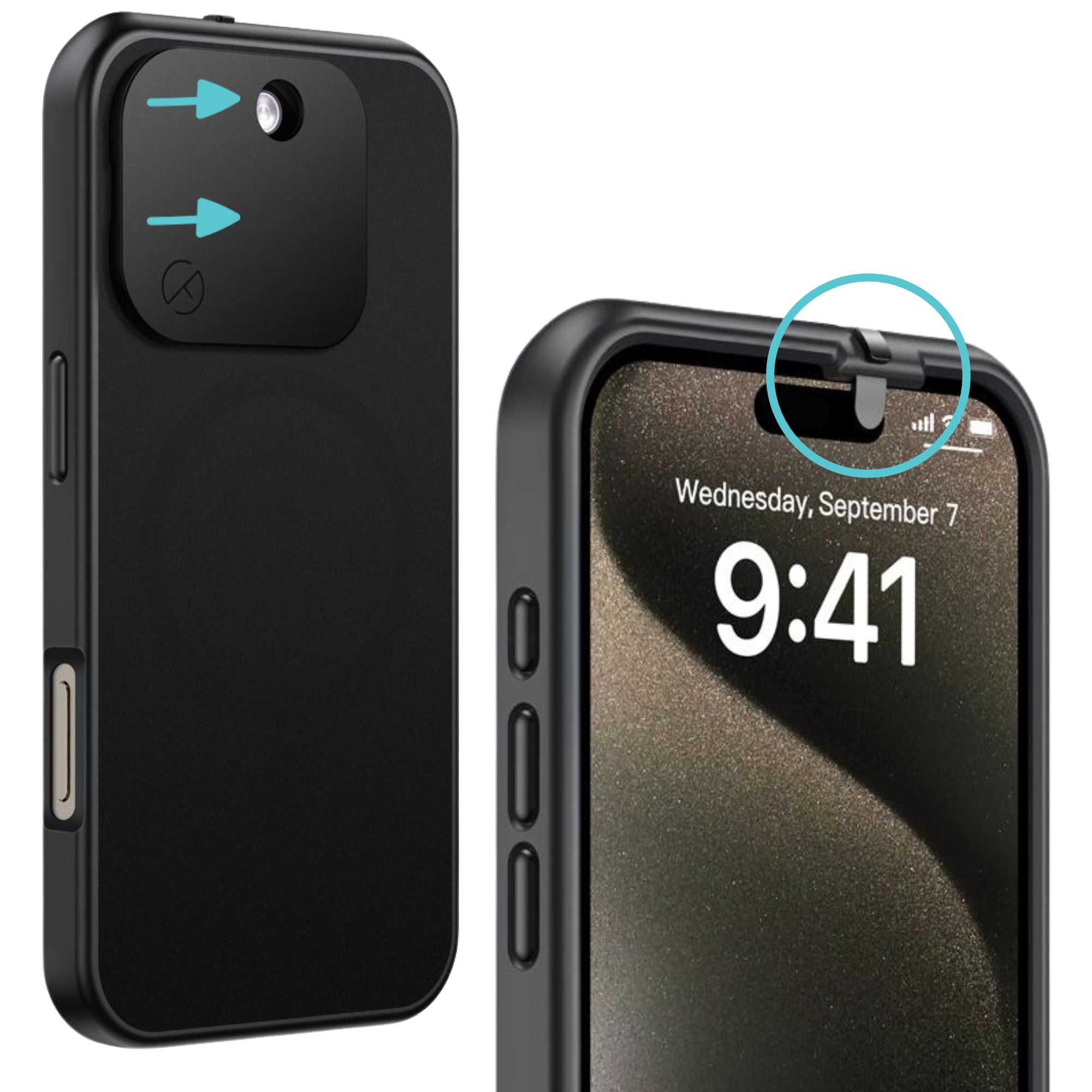
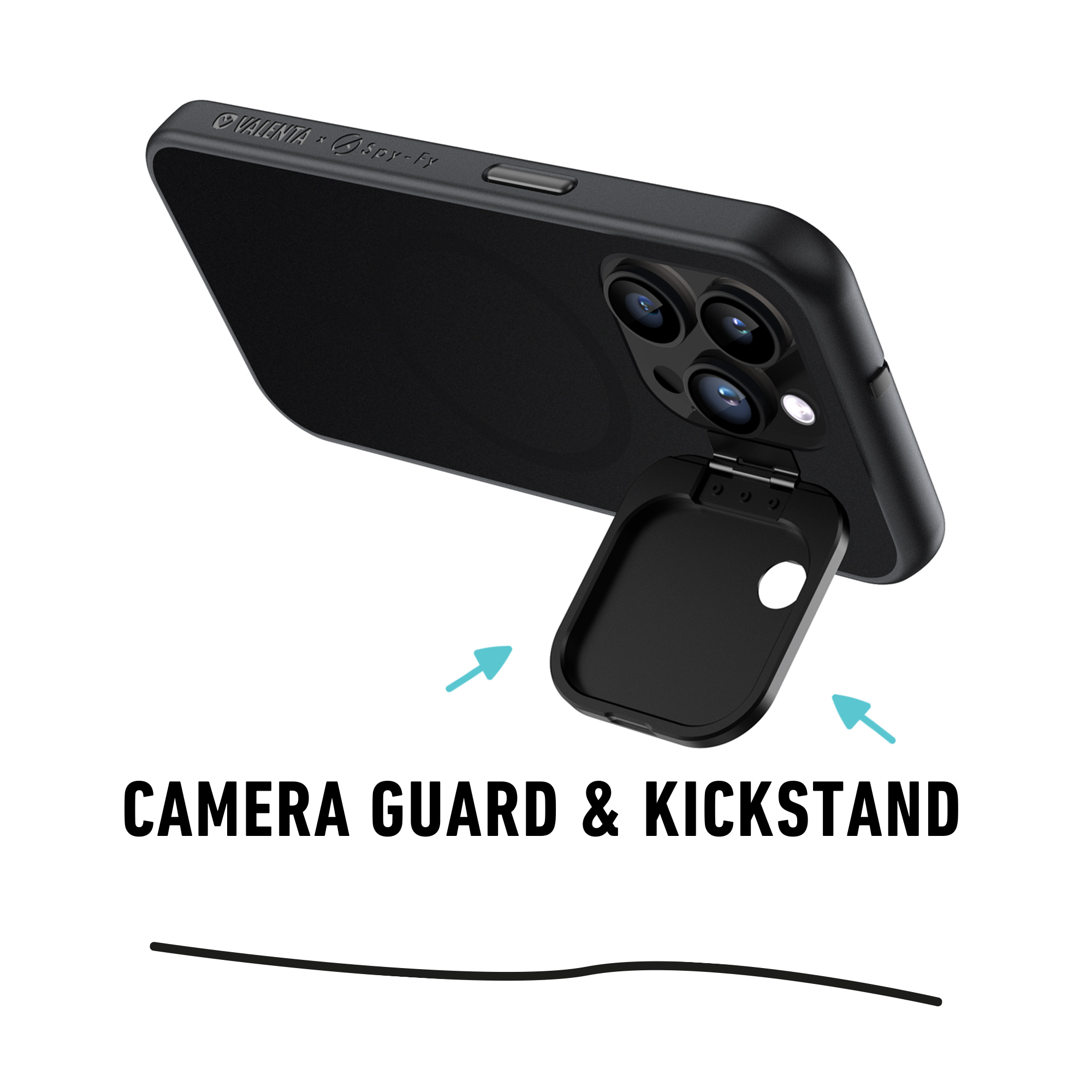
Spy-Fy iPhone privacy cases include a sliding cover over the front camera (Face ID still works when the cover is open) and a flip cover over the rear camera lenses. The flashlight remains usable when the rear cover is closed. The cases are MagSafe-compatible, drop-protected with thermoplastic polyurethane and air cushion construction, and engineered for the iPhone 12 through the iPhone 17 series. To see the lineup for the current generation, browse the iPhone 17 privacy case range, which covers standard, Pro, Pro Max, and Air models.
For organizations equipping employees, journalists, healthcare staff, or legal teams, custom iPhone cases with camera covers can be branded and ordered in bulk.
Practical privacy audit: a five-minute checklist
Whether or not you ever see an unexplained indicator, run this audit on a quiet evening:
- Open Settings > Privacy & Security > Camera. Revoke access from any app that does not need it.
- Repeat for Microphone, Location Services, Contacts, and Photos.
- Check Settings > General > VPN & Device Management. If there is a profile you did not install, that is a serious red flag.
- Update iOS. Apple's security patches frequently close vulnerabilities that have been used to install spyware.
- If you handle sensitive information, add a physical camera cover. The case does the work whether you remember to or not.
The takeaway on the iPhone camera dot
The iPhone camera dot is a real, useful, well-implemented privacy feature. Green means camera, orange means microphone, and Control Center will tell you which app is responsible. For day-to-day use, trust the indicator and audit your app permissions when something looks off.
For professionals whose work makes them a target, treat the indicator as a first layer, not the only layer. A physical cover is the only protection that survives a compromised operating system. Browse the full Spy-Fy privacy case collection to find the case that fits your iPhone.